
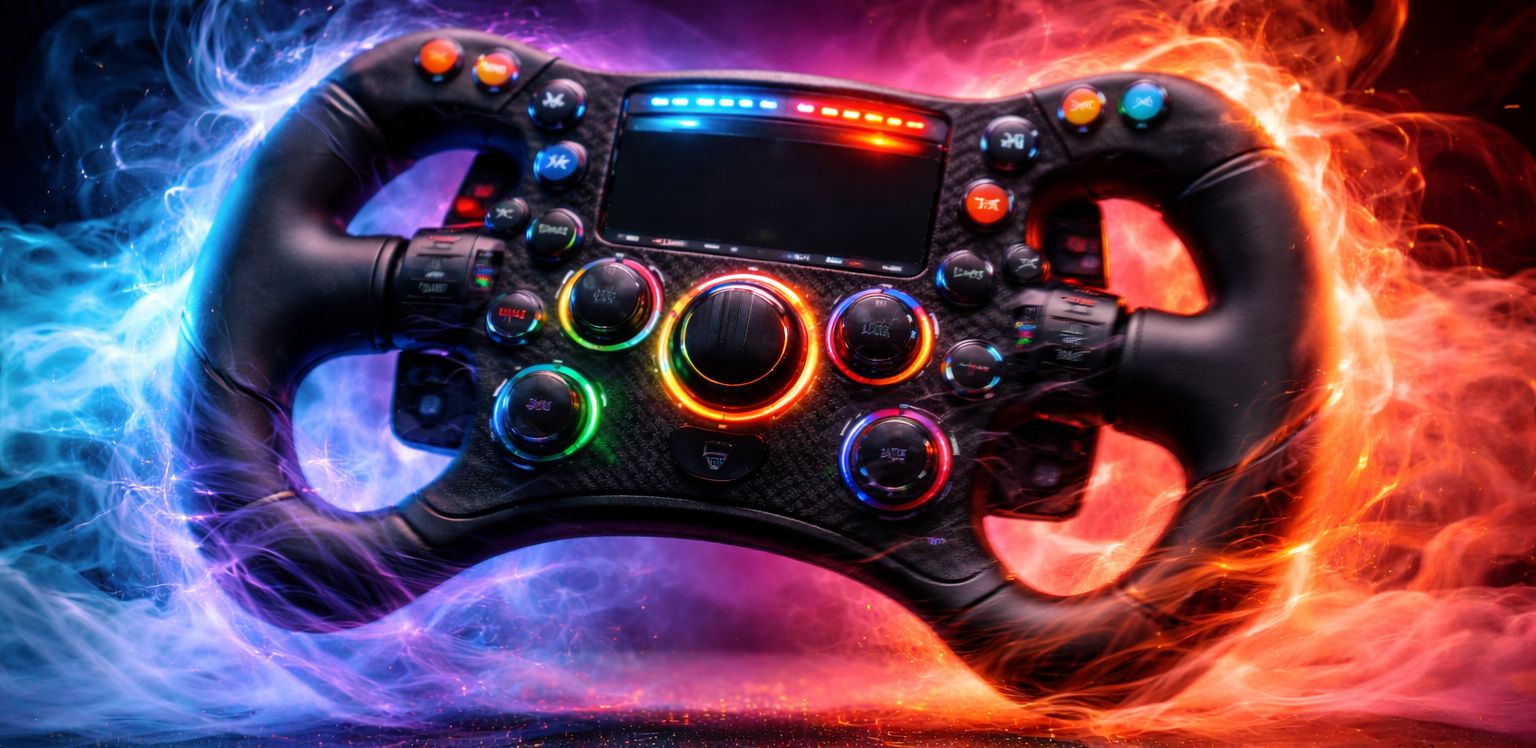
Steering Effects generates extra feedback signals based on how the car is behaving, then feeds those signals into:
- Grip-O-Meter overlay window (visual indicator)
- Racing wheel vibration (selectable vibration patterns)
- Racing wheel constant force (increase/decrease force)
- Pedal vibration
- Sounds
Calibration File
Selects which calibration file to use for the current car. The iRacing simulator must be running for there to be a list of files to choose from.
The files are loaded from your Documents\MAIRA Refactored\Calibration folder
If no file is selected and at least one file matching the current car exists, MAIRA will auto-select the first one.
The calibration file is only needed for the understeer and oversteer effects. The seat-of-pants effect does not use calibration files.
The calibration graph shows various colored lines when a calibration file is loaded –
- Cyan line = the expected yaw rate for each steering wheel position
- Yellow line = your minimum threshold setting
- Red line = your maximum threshold setting
The calibration graph also displays a live dot indicating the current position of the steering wheel vs. the current yaw rate of your car.
Understeer / Oversteer / Seat-of-Pants
Each of the three steering effects (Understeer, Oversteer, and Seat-of-Pants) have very similar controls –
- Enabled / Thresholds
- Wheel Vibration Effect
- Wheel Constant Force Effect
- Pedal Vibration Effect
Enable / thresholds
Enabled
Turns the effect on/off. The rest of the settings for the steering effect are hidden if the effect is disabled.
It is not recommended to enable oversteer and seat-of-pants at the same time. Use one or the other.
Default: OFF
Minimum Threshold
For understeer and oversteer, this is the amount of deviation, from the expected car performance, before the effect will start playing.
For seat-of-pants, this is the minimum lateral velocity, or lateral acceleration, or ratio of velocities, before the effect will start playing.
Maximum Threshold
For understeer and oversteer, this is the amount of deviation, from the expected car performance, where the effect will be at maximum.
For seat-of-pants, this is the lateral velocity, or lateral acceleration, or ratio of velocities, where the effect will be at maximum.
When tuning the effect for your driving style, it is recommended to map both the minimum and maximum threshold – / + buttons to the same knob on your steering wheel. This way, you can turn the knob up and down, while test driving the car, until the effect is active exactly when you want it to be.
Algorithm
For the seat-of-pants steering effect only, there are three algorithms to choose from:
- Lateral Acceleration (Ay)
- Lateral Velocity (Vy)
- Ratio of Velocities (Vy/Vx)
Lateral Velocity (Vy) is what the original version of MAIRA used. The refactored version uses Ratio of Velocities (Vy/Vx) by default instead, because this algorithm establishes a relationship between the forward velocity of the car vs. the lateral velocity of the car.
Default: Ratio of Velocities (Vy/Vx)
Threshold Tuning
To tune the thresholds for the car you are driving, it is recommended that you take your car out on the Centripetal Circuit track and drive in circles. It will help to map some inputs to the – and + threshold buttons, so you can change the setting on the fly while driving. Better yet, map the – and + buttons for both the minimum and maximum thresholds to the same knob, so when you turn it, the minimum and maximum thresholds both go up and down by the same amount.
Here’s a handy table –
| Experience | What To Do |
| Cues trigger too late | Lower both thresholds |
| Cues trigger too early or often | Raise both thresholds |
| Effect ramps up too quickly | Increase the maximum threshold |
| Effect ramps up too slowly | Decrease the maximum threshold |
Wheel Vibration Effect
Adds a vibration signal to the wheel when the effect is active.
Vibration Pattern
Options: None, Sine Wave, Square Wave, Triangle Wave, Sawtooth Wave (In/Out)
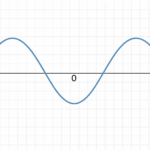
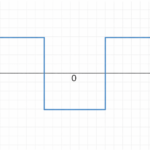
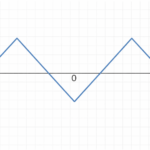
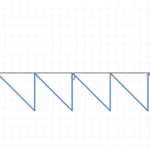
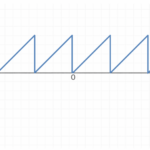
If the vibration pattern is set to “None”, then the rest of the settings are hidden.
Default: Sine Wave for understeer, None for other effects
Strength
How strong the effect should be, as a percentage of your wheel force.
Default: 10%
Minimum Frequency
This is the frequency that the wheel will vibrate at, while the effect is playing. This frequency is fixed, and will not change, while the amount of deviation is below the maximum threshold.
Default: 15 Hz
Maximum Frequency
This is the frequency that the wheel will vibrate at, when the amount of deviation reaches, and exceeds, the maximum threshold.
Default: 50 Hz
Curve
Default: 25%
Wheel Constant Force Effect
Modifies the wheel’s main torque output when the effect is active.
Direction
Options: None, Decrease Force, Increase Force
If the constant force direction is set to “None”, then the rest of the settings are hidden.
Strength
Default: 10%
Curve
Default: OFF
Pedal Vibration Effect
Minimum Frequency
The frequency to vibrate the pedal at, when below the steering effects maximum threshold.
Default: 10% (5Hz)
Maximum Frequency
The frequency to vibrate the pedal at, when at or above the steering effects maximum threshold.
Default: 100% (50Hz)
Curve
Default: OFF
Grip-O-Meter
This is a small overlay window that shows:
- Skid/Slip indicator (based on under/over deviation)
- Seat-Of-Pants ball (based on seat-of-pants effect)
The skid/slip indicator is very similar to how this gauge works for aircraft.
Enable the overlay window
This is basically the enable switch for the Grip-O-Meter. When enabled, the overlay will be visible whenever your car is on the track. If your car is in the garage, or this setting is disabled, the overlay will not be visible.
Default: OFF
Show the overlay window title
Show or hide the overlay window title.
Default: ON
Make the overlay window draggable
When off, the window becomes click-through (transparent to mouse). When on, the overlay window is forced to be visible so you can move it around.
Default: OFF
Overlay Window Scale
Adjusts the size of the Grip-O-Meter overlay.
Default: 100%
Reset the overlay window position

If you ever lose the Grip-O-Meter overlay (it goes off-screen for whatever reason), you can click on this button to reset the position of the Grip-O-Meter to be at the upper left corner of your primary display.
Previous page: Racing Wheel
Next page: Pedals