the Legal Stuff
This app has been downloaded and used by thousands of users without any issues, and a lot of effort has been spent in making sure it works.
This app controls the force feedback of your wheelbase. If you have a very strong wheelbase, this app can and will cause injuries if you are not careful.
This app does not do any automatic modifications to iRacing, but may require you to modify iRacing settings including disabling Force Feedback, and possibly also modify your iRacing app.ini file, if you have a Logitech wheel.
The app may require you to update your wheelbase firmware and/or software in order to work. This app does sometimes require additional components to be installed directly from Microsoft, depending on your system. These modifications and updates may cause iRacing or your wheel or your computer to stop functioning as expected.
I can’t be held responsible for any issues to your system, wheelbase, or to your body. If you do not agree with this, then please don’t use this software.
The code is public and can be found here:
Downloading
You can download the latest version by clicking on the first link at the top of the home page of this website.
The installer is named after the version it installs — MAIRA-Setup-2.1.4312.exe, for example. Versions have three parts: 2.1 plus a build stamp that goes up every time I build the app, so a higher number is always the newer build.
Installing
After you download the app installer, find it on your computer and run it.
On a brand-new release, you might still see a Windows SmartScreen warning like this –
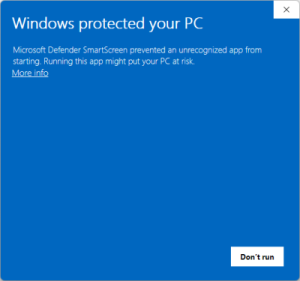
Good news — my app is now digitally signed with a proper code-signing certificate, so Windows shows Marvin Herbold as the verified publisher instead of scaring you with an “Unknown Publisher” warning. A brand-new release might still pop up a SmartScreen prompt for a little while, until Windows learns to trust that version — if you see one, just click on More info and then click on Run anyway. These warnings go away on their own as more people install each release. And as always, if you don’t trust me, then don’t — the source code for MAIRA is public and can be reviewed by anyone.
If SimHub is running, the installer closes it before it copies files (it has to, because it updates the MAIRA plugins inside SimHub’s own folder) and starts it again afterward.
After you install my app, run it by pressing the Windows key and typing “MAIRA” in the search box. The installer also offers a desktop shortcut, also named MAIRA — that one is off by default, so tick it on the installer’s last page if you want it.
MAIRA does not add itself to Windows startup. If you want it to launch when you sign in, turn on Start with Windows on the App Settings page and MAIRA puts a MAIRA shortcut in your Startup folder for you.
What the Installer Puts Where
The app itself goes into a Marvin’s Awesome iRacing App folder. If you install it just for yourself (the default) that is under C:\Users\[your name]\AppData\Local\Programs; if you install it for all users it is under C:\Program Files.
Everything you can change or add to lives in a MAIRA folder inside your Documents folder, so an uninstall never takes your settings with it. The installer creates it and drops the default files into it:
- Sounds — the wav files MAIRA plays, so you can replace them with your own
- Recordings — force feedback recordings
- Calibration — the per-car calibration files the steering effects use
- TTS — the text-to-speech files used by commentary
- SimHub and SBT — the SimHub plugins and bass shaker files
MAIRA adds a few more folders here as it runs — Logs for its log files, Backups for settings backups — and this is also where downloaded installers are kept.
If SimHub is installed, the three MAIRA plugin DLLs are copied straight into SimHub’s own folder as well.
Upgrading from an Older Version
This app used to be called “MarvinsAIRA Refactored”, and its documents folder was named to match. That name is retired, and everything now lives in Documents\MAIRA instead.
You do not have to do anything about it. Before it copies any files, the installer renames your old MarvinsAIRA Refactored folder to MAIRA, so your settings, recordings, calibration files and sounds carry straight over. If the installer is running from inside that folder (which is the case when you update from within the app), or something else has the folder open, it leaves the folder alone and MAIRA finishes the job itself the next time it starts — moving everything across and, where a file exists in both places, keeping the copy from whichever folder is the older of the two (that is the one holding your data). The copy that loses out is saved into a Pre-merge subfolder of Documents\MAIRA\Backups rather than deleted, and MAIRA writes down what it did in the log file. The installer also clears out the old Start menu, desktop and startup shortcuts so you are not left with dead ones.
Updates
MAIRA checks for a newer version when it starts, and again every so often while it is running. It never interrupts you mid-session — the periodic check is skipped while the simulator is running, while a game or presentation is full-screen, and during Windows quiet hours.
When there is a newer version, MAIRA shows you the change log and asks whether to download it. The installer is saved into your Documents\MAIRA folder, and MAIRA then offers to close itself and run it. MAIRA keeps the three most recent installers and deletes the older ones. All of this can be turned off or tuned on the App Settings page.
Controlled Folder Access
MAIRA keeps all of its data — settings, sounds, calibration files, recordings, and logs — in a MAIRA folder inside your Documents folder. The installer creates this folder and copies the default files into it, and the app reads and writes files there every time it runs.
Windows has an optional ransomware protection feature called controlled folder access. It is off by default, but if you have turned it on, Windows will block apps it does not recognize from writing to protected folders — and your Documents folder is protected by default. This can stop the installer from creating the MAIRA folder, and can also stop MAIRA itself from saving your settings and writing its log files. Windows usually only shows a small “Unauthorized changes blocked” notification when this happens, so it is easy to miss.
If you use controlled folder access, here is how to let MAIRA through:
- Press the Windows key, type “ransomware protection”, and open it. You can also get there by opening Windows Security, clicking on Virus & threat protection, and then clicking on Manage ransomware protection.
- Click on Allow an app through Controlled folder access.
- Click on Add an allowed app. If Windows recently blocked the installer or MAIRA, you can pick it straight from Recently blocked apps — otherwise choose Browse all apps.
- Select MarvinsAIRARefactored.exe. If you installed the app just for yourself (the default), it is in C:\Users\[your name]\AppData\Local\Programs\Marvin’s Awesome iRacing App. If you installed it for all users, it is in C:\Program Files\Marvin’s Awesome iRacing App.
Allowing MarvinsAIRARefactored.exe is a one-time thing — it stays allowed through app updates because updates keep the app in the same location. The installer is different — its file name changes with every version, so Windows treats each new installer as a brand-new app. The easiest approach for installing is to temporarily turn off controlled folder access, run the installer, and then turn it back on afterward.